



By Shabana Navas
Posted in
,
February 27, 2018
QuickBooks Enterprise integration in Drupal Commerce 2 | Article
QuickBooks Enterprise Integration in Drupal Commerce 2
Background
When I was tasked with integrating QuickBooks accounting software with an existing Commerce 2.x installation, instead of asking questions a normal Drupal developer would, I asked myself one question: what exactly is QuickBooks? Though I’m a bit embarrassed, I’m not going to shy away from admitting that I have never had an opportunity to explore or be exposed to the QuickBooks accounting software. So, doing an integration first required me to research QuickBooks.
For the unaware (which I doubt there are any), QuickBooks is an accounting software businesses use to manage sales and expenses and keep track of daily business transactions. It’s often used to invoice customers, pay bills, generate reports, and for tax filing purposes. While there are many applications like it, QuickBooks is considered one of the better options in its class. You can learn more about QuickBooks on their website, but this fully-developed software takes care of all the different aspects of accounting. Thus, quite a few small to medium-scale businesses use QuickBooks because it makes life easy. However, the process becomes a little trickier if you're doing business online.
For a lot of customers who have an online store, a big pain for them is syncing their sale transactions like order, customer, tax and payment data into QuickBooks for bookkeeping. Basically, how do you transfer over your online transactions to QuickBooks?
We’ve had customers in the past who just assign a staff to sit and enter the days transactions, manually, at the end of each day. When you have hundreds of orders a day, especially, like during the holidays, this can be a huge headache. Not only are you wasting time and money by entering the duplicate data but you’re also exposing yourself to human errors. Because, at the end of the day, all this data is used for filing taxes, generating invoices, re-ordering products, etc., and any error in the data can wreak havoc.
So, out of this dilemma, quite a few Drupal modules came up which paved the way to integrating Commerce/Ubercart transactions into QuickBooks. But most of them are for Drupal 7. How do we integrate a Drupal 8 site running Commerce 2.x into QuickBooks? Essentially, that was my task. It was an excellent learning experience and I’m hoping that I can shed some light on the procedure for syncing your commerce data into QuickBooks.
Setup Drupal Commerce 2 to sync with QuickBooks Enterprise
Our job today will be trying to integrate a Drupal 8 Commerce 2 installation with QuickBooks Desktop. Before we start, I’d like to thank everyone who created the commerce_qb_webconnect module for all their awesome work and especially, Lucas Hedding (heddn), for supporting me in this endeavor.
Essentially, commerce_qb_webconnect, under the hood, uses migrate to export from D8 to a SOAP service destination. This also means that we have more flexibility, because any of the means to work and interact with a migration lets us interact and alter the exported details of a QuickBooks export as well.
The initial setup is as follows (I’m assuming that you already have been using QuickBooks Enterprise Desktop):
- Download and install QuickBooks Enterprise Desktop (we used the 2017 Retail version)
- Note: QuickBooks Desktop, currently, only works on the Windows operating system. Also, be very careful about which version you are purchasing. Make sure you select the correct country version based on where you’re doing business because each version is fitted to a specific country and its tax system, and unfortunately, you cannot just switch countries in the software.
- Setup all your accounting details on QuickBooks
- Go to Payments and click on the PMT. Method select list and add the following payment methods depending on the payment gateways enabled on your site (these are the gateways on my test site):
- Example
- Default
- Download and install QuickBooks Web Connector 2.2.0.80
Download the Drupal module commerce_qb_webconnect
$ composer require drupal/commerce_qb_webconnectAt the time of this writing, the module has an 8.x-2.0 alpha version out and it contains most of the functionality required to get the commerce data into QuickBooks.
- Go to your Drupal installation
- Note: If it's a local installation, make sure the url of the site starts with http://localhost (yes it has to have the words localhost, it’s hardcoded). Else, if it's a public site, you have to make sure it has an https certificate.
- Go to /admin/people and add the password for **quickbooks_user ** in Drupal and note that password as we’ll be using it in the Web Connector application.
Go to /admin/commerce/config/commerce_quickbooks_enterprise/qwc and make sure your config looks like this:
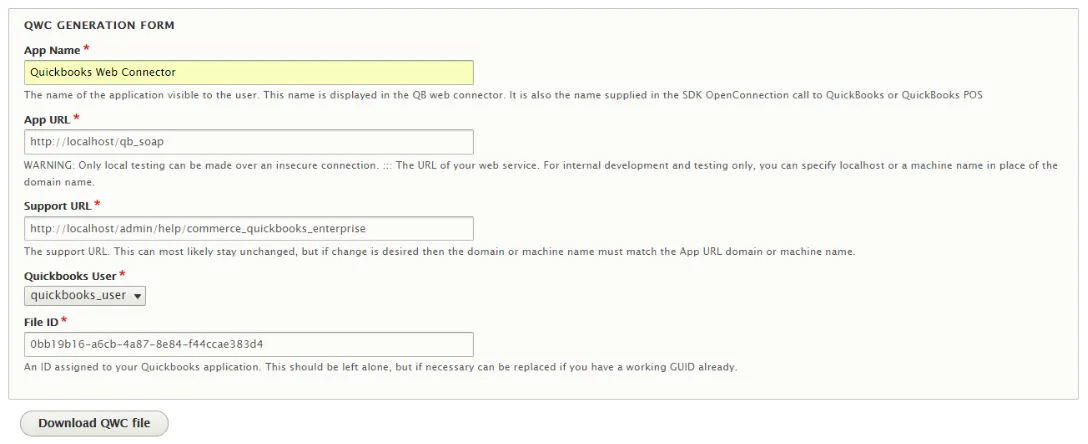
- Now, Download QWC file (click that button).
- Open QuickBooks Web Connector and click on 'Add an application' and upload the .qwc file.
- Click 'Yes' to all the prompts and your file should be successfully added.
Now, go to /admin/commerce/config/commerce_quickbooks_enterprise/quickbooksadmin and add the following configs and leave everything else as it is:
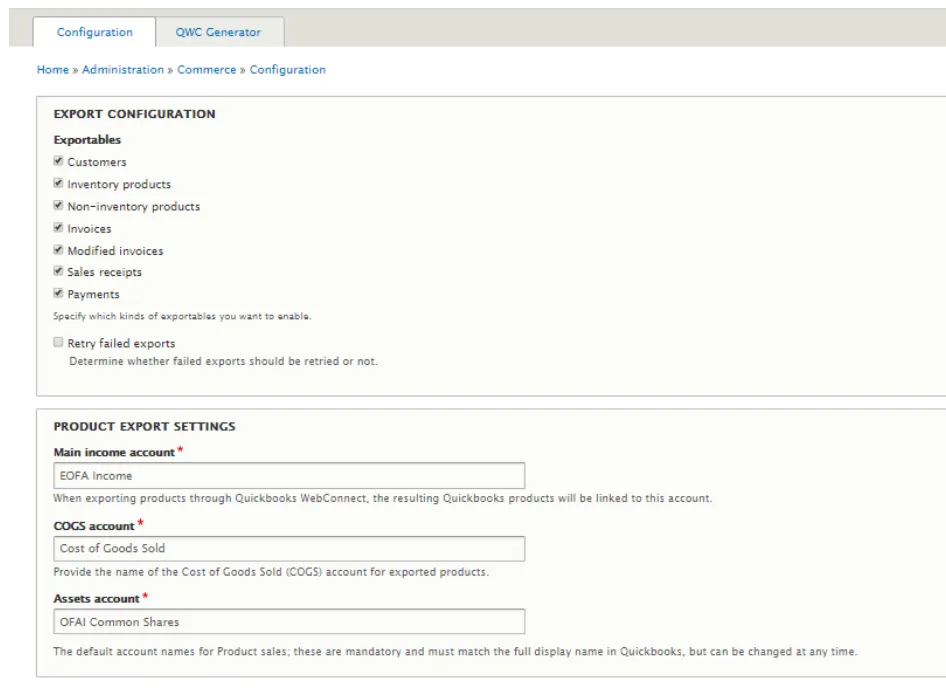
- Make sure to replace the Income, COGS, and Assets accounts with the appropriate ones matching your accounting information.
Syncing the data with QuickBooks Enterprise
- Assuming you have created some products on your site, add a product to the cart, finish checkout and complete the order.
- Go to /admin/reports/dblog and notice you'll see messages like: "Added Invoice Order to export queue!"
Now, go to the Web Connector and select the application we just uploaded with the .qwc file and hit 'Update Selected'. Make sure you enter the same password that we saved earlier (See setup step 5) for the password field.
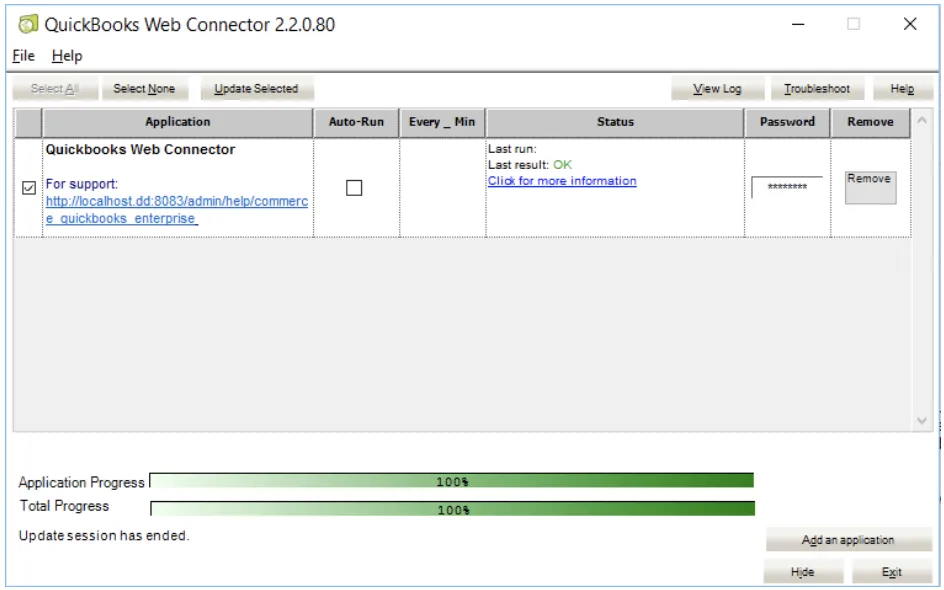
- The order (invoice/sales receipt), product, payment, and the customer will automatically be imported to your QuickBooks Desktop.
Check QuickBooks Desktop to verify they have been added by clicking on 'Customer' and finding the name on the order there and then 'Recent Transactions' and then, Invoice/Sales Receipt. You can see the product in the 'Item' section. You can see the payment in the 'Payment' section by clicking on the 'Received From' select list and selecting the name on the order.
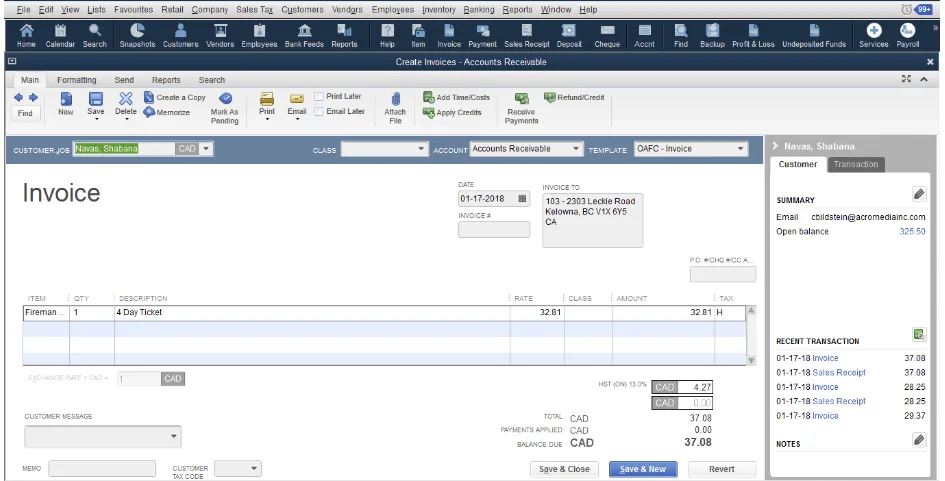
And voila! If everything worked, you should see all the details from the new transaction synced in your QuickBooks Enterprise Desktop. The need to waste time and money on manual entry and chances of user errors vanishes by integrating QuickBooks with your online Drupal 8 Commerce 2 store(s).
More from Acro Commerce
- Article: Automate Your Bookkeeping With Our Drupal & QuickBooks Integration
- Learn more about our Drupal and Drupal Commerce solutions
- Learn more about our Drupal Commerce integrations
Need a hand?
Would you like other apps integrated into your Drupal Commerce website, but need a hand doing it? We've done it many times and would love to help.